How to Take a Good Shirtless Photo
Published · Updated
Quick answer
Knowing how to take a good shirtless photo starts with directional light, a slight quarter turn toward it, a moderate flex, and a camera at chest height. Clean up the shot afterward with simple, body-focused editing instead of fixing a flat shot with heavy edits.
Key takeaways
- Use directional light from a window or lamp instead of overhead lighting.
- Turn a quarter angle toward the light to show more shape than a straight-on shot.
- Shoot from chest height and take several frames before picking one.
- Chisel's manual editing tools run on your phone and every editing tool is free.
- A sharper jawline comes from posing, angle and lighting, not from an editing tool.
Learning how to take a good shirtless photo comes down to three things: light that defines your shape, an angle that flatters your proportions, and a pose that looks controlled but not stiff. Get those right in-camera, then use editing to clean up what's already there.
What's the best setup before you even take the photo?
Most shirtless photos fail before the camera comes out. The room is too dark, the light comes from the wrong direction, or the background is cluttered enough to pull attention away from you.
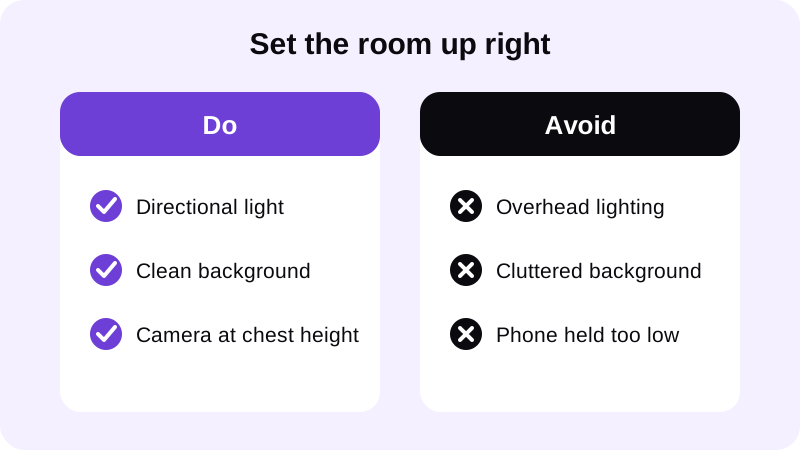
Find directional light first. A window during the day or a single lamp works better than overhead lighting, which flattens everything it touches. Even a basic desk lamp angled from one side gives more control than whatever light happens to already be in the room.
Set the camera at chest or eye height. A phone propped too low or too high distorts your proportions before you've even posed. If you want a deeper breakdown of light direction, intensity and how it interacts with muscle shadow, the guide on best lighting for gym progress photos covers setups built for this kind of shot.
How should you pose for a shirtless photo?
Posing is where most people either overdo it or underthink it. Neither extreme works well in a still photo.
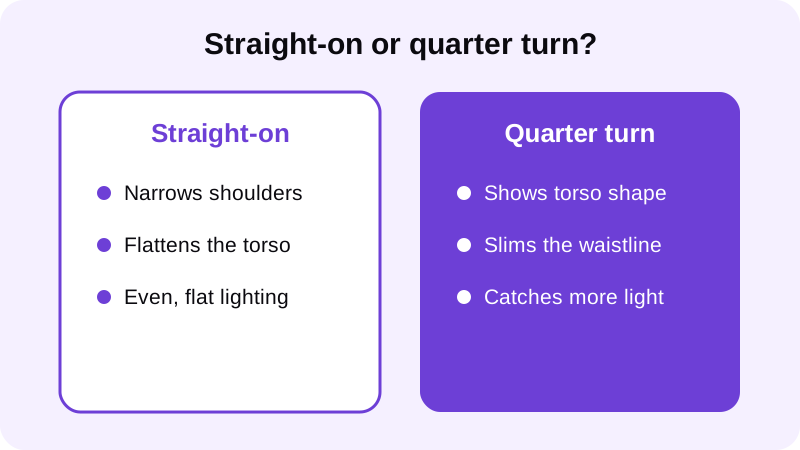
- Turn a quarter angle toward the light instead of facing the camera straight on.
- Hold a moderate flex — enough to show definition without straining your face.
- Pull your shoulders back and down to open the chest and lengthen the neck line.
- Leave a small gap between your arms and torso so the waist taper reads clearly.
A straight-on shot compresses your torso and can make your shoulders look narrower than they actually are. Turning toward the light shows more shape along the chest and arm, and it naturally slims the waistline in frame — a principle covered in more detail in how to widen shoulders in a photo. Dropped shoulders also clean up the line from jaw to shoulder, which matters if you also want a sharper-looking jawline — that comes down to head tilt, chin position and light direction, not an editing tool. The guide on getting a sharper jawline in photos covers that posing and lighting technique separately.
Arms pinned tightly to your sides hide the gap between chest and waist that makes a torso look defined, so a small, natural distance between arm and body does more than any editing trick. Maxing out a flex for the camera usually backfires — it tightens the face, locks the pose, and reads as try-hard in a still image. A controlled, moderate flex looks more confident and photographs better.
What camera settings and angles actually matter?
You don't need professional equipment, but a few habits make a real difference to how the shot turns out.
- Shoot slightly above waist height, angled down a little, to elongate the torso instead of compressing it.
- Avoid an ultra-wide lens held close — the distortion it introduces exaggerates the stomach and shrinks the shoulders.
- Take more than one shot. Small shifts in angle and flex timing change the result more than people expect, so pick the best of several rather than judging the first frame.
- Check the full frame, not just your torso, before you commit — a crooked horizon or a messy edge of the shot pulls the eye away from you.
For a full walkthrough of distance, framing and angle when the whole body is in the shot rather than just the torso, see how to take a full body photo that looks sharp.
How do you clean up the photo afterward without it looking edited?
Once you have a solid shot, editing should tidy up what's already there, not invent a different physique. A tool built specifically for men's photos, like Chisel, works on the body — not the face — so edits line up with what the camera actually captured.
Let pose detection do the work
Chisel's pose detection automatically finds your torso in the photo, so you're not manually masking anything. That matters most in a shirtless photo, where your skin and shape are fully visible and any edit has to line up exactly with what's already there.
Add definition, not a different physique
If your abs or chest look flatter in the photo than in person because of lighting or angle, Chisel's optional AI Transform can add six-pack and chest, shoulder and arm muscle definition (it asks before sending the photo to a cloud AI provider), and the sliders can widen the shoulders and slim the waist slightly. Every slider shows a natural limit marked in green, so the result stays inside a range that still looks like you. The guides on adding a six-pack to a photo and adding muscle to a photo go through this slider by slider.
Know what Chisel doesn't touch
Chisel has no jawline, eye, teeth or beard edits — it doesn't retouch your face at all. Its Smooth filter smooths the whole photo evenly, which is a different thing from a skin or face retouch. If you want a cleaner jaw, eyes or beard line in the final photo, that comes from grooming, head angle and light direction before you shoot, not from a slider afterward.
Know what happens to the photo when you edit it
Chisel's manual editing tools — the sliders for abs, muscle, the V-taper and the waist — run on your phone. If you use the optional AI Transform feature instead, your photo is sent to a third-party cloud AI provider to generate the result, and the app asks first before sending anything. Either way, Chisel writes an AI-altered label into the photo's metadata, which is a straightforward way to disclose the edit if you post it. Every editing tool in Chisel is free to use, and the app requires no account.
What's the most common mistake in shirtless photos?
Overcorrecting. People take a flat, poorly lit photo and then try to fix it with heavy editing instead of better light and angle in the first place. A photo with weak directional light and a straight-on pose gives an editor very little real shadow to work with, so any added definition has nothing to sit on top of.
The fix is to spend your effort before the shutter, not after. Get the light direction right, turn toward it, hold a controlled flex, and shoot a few frames from chest height. If your waist or stomach still reads heavier than you'd like in the final frame, a camera-angle fix is often enough on its own — see how to hide belly fat in photos for angle-based techniques that don't rely on editing at all.
Where can you learn more about editing a physique photo well?
- Body editor for men: how to edit gym photos without looking fake
- How to make your body look leaner in photos
- Chisel AI: what it is and how it works
FAQ
Do I need professional lighting to take a good shirtless photo?
No. A window during the day or a single lamp angled from one side works better than overhead fluorescent light, which flattens everything it touches. Directional light is what creates the shadow lines that define your chest and abs in the photo.
What's the best camera angle for a shirtless photo?
Shoot from roughly chest height, angled down slightly, with a quarter turn toward the light instead of facing the camera straight on. This elongates the torso and shows more shape than a flat, head-on shot.
Can editing fix a badly lit shirtless photo?
Editing can clean up what's already there, but it can't replace good light and angle. Chisel's sliders reshape what the photo already shows, and its optional AI Transform adds six-pack and muscle definition, but a flat, poorly lit photo gives either one very little to work with.
Does Chisel edit my face or jawline?
No. Chisel has no jawline, eye, teeth or beard edits. Its sliders work on the body — abs, muscle, the V-taper and the waist — and its Smooth filter smooths the whole photo rather than retouching your face.
What's the most common mistake in shirtless photos?
Overcorrecting. People shoot a flat, poorly lit photo and then try to fix it with heavy editing instead of fixing the light and angle first. A better shot needs far less editing to begin with.