How to Make a Selfie Look Professional
Published
Quick answer
To make a selfie look professional, use soft window light, a plain background, and hold the phone at chest height — then make small edits with a tool like Chisel that keeps a natural limit so the result still looks like you.
Key takeaways
- Window light beats an overhead bulb for a professional-looking selfie.
- Hold the phone at chest or eye height, not below your chin.
- Chisel's sliders include a natural limit so edits don't look fake.
- Six-pack and muscle definition come from AI Transform, not the sliders.
- Export in HD, and the file keeps an honest metadata label for AI edits.
Making a selfie look professional comes down to four things you control with your phone: lighting, background, camera angle, and a light edit before you post. Here's how to make a selfie look professional without it looking filtered or fake.
What actually makes a selfie look professional?
A professional-looking selfie isn't about owning a better camera. It's about controlling the handful of variables a phone can already handle well: where the light comes from, what's behind you, how high the camera sits, and how much you clean up afterward.
Most selfies read as amateur for the same three reasons — shadows under the eyes from overhead light, a cluttered selfie background, or a phone held too low. Fix those first and the photo already looks more deliberate. Editing should come last, and it works best when nobody can tell it happened.
How do you take a professional-looking selfie step by step?
Set up the shot before you touch the shutter: light, background, and selfie camera angle, in that order.
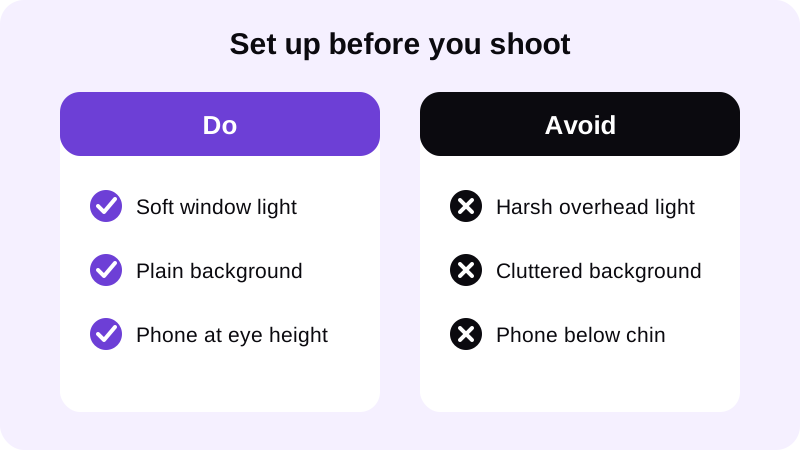
- Face a window or other soft light source instead of standing under an overhead fixture.
- Clear the background behind you, or step in front of a plain wall.
- Hold the phone at chest or eye height rather than tilting it up from below.
- Square your shoulders to the camera and stand tall instead of leaning into the lens.
- Use the self-timer or a remote shutter so your arm and hand stay out of frame.
- Take a handful of shots at slightly different angles and pick the sharpest one.
If posture is the part that keeps letting the photo down, there's a longer breakdown of stance and phone angle in How to Improve Posture in a Selfie.
How do you edit a selfie to look sharper without faking it?
Editing should clean up what the camera already captured, not invent a different body or face. Chisel's manual tools run on your phone, and every slider shows a natural limit marked in green so the result still looks like you.
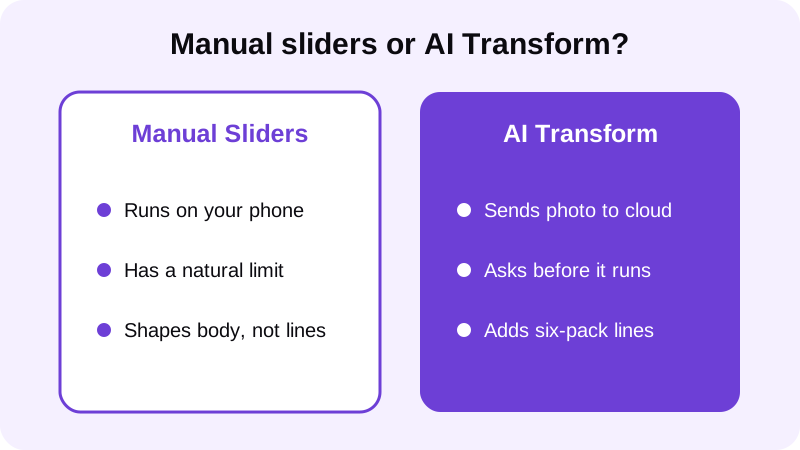
Start with the sliders. Chisel's Shoulders and Waist sliders build a V-taper, widening the frame at the shoulders and slimming it at the waist, and the Height slider stretches the whole photo vertically from its centre if you want a taller-looking frame. None of these draw muscle or lines — they adjust overall shape, and the Abs and Muscle sliders both add the same gentle fullness to the middle of the torso rather than carving anything in.
If you want visible six-pack or muscle definition in the shot, that's a separate step. Chisel's optional AI Transform sends the photo to a third-party cloud AI provider, asks first, and includes a limited number of free uses. It's built specifically for men's physique photos, not as a general beauty filter, so it works best on a shirtless photo or a fitted top where the torso is visible. For a closer look at how the sliders and AI Transform fit together, see Body Editor for Men: How to Edit Gym Photos Without Looking Fake.
Finish with the Smooth filter if the lighting left the shot looking harsh — it smooths the whole photo rather than retouching your face — then export. Chisel exports in HD, and anything larger than 2048 px on the long side gets scaled down on import. Whenever AI Transform runs, Chisel writes an AI-altered label into the photo's metadata, so the edit stays disclosed instead of hidden.
What mistakes make a selfie look unprofessional?
- Shooting under a single overhead light, which casts hard shadows across the face and neck.
- A busy or messy selfie background that pulls attention away from you.
- Holding the phone too low, which distorts the jaw and stretches the arm in frame.
- Cropping so tight that the top of the head or the shoulders gets cut off awkwardly.
- Over-editing skin or body shape until the photo looks like someone else.
Lighting is worth the extra attention because it affects the whole photo, not just one feature of it. If you're shooting a training or gym selfie specifically, Best Lighting for Gym Progress Photos covers window light, overhead fixtures, and why flash usually backfires.
Is a selfie enough, or should you use a different setup?
A selfie works fine for casual posts, but a tripod or a second person holding the camera gives you a steadier frame and lets you check the shot before committing to it. If you want the fuller picture, a proper standing photo shows more of your proportions than an arm's-length selfie ever can — see How to Take a Full Body Photo That Looks Sharp for that setup.
Either way, the editing step is the same: sliders with a natural limit, an optional Smooth pass, and an HD export. Every editing tool in Chisel is free to use, with a Pro subscription — including a 3-day free trial — or a one-time Lifetime purchase available if you'd rather remove ads and the watermark and unlock Pro templates. Chisel is available on Android through Google Play now, with an iPhone version coming soon, and it doesn't ask for an account to get started.
FAQ
Does Chisel edit my face to make a selfie look more professional?
No. Chisel doesn't edit faces — it has no jawline, eye, teeth or beard tools. Its sliders work on the body: abs, muscle, the V-taper and the waist. For a sharper-looking face in a selfie, adjust your lighting, angle and grooming instead.
What's the quickest fix for bad selfie lighting?
Turn toward a window instead of standing under an overhead light. Soft, even light from the side removes harsh shadows under the eyes and jaw, which does more for a professional look than any editing app can fix afterward.
Can I remove the background from a selfie?
Yes. Chisel includes a background remover that cuts the person out as a transparent cut-out image — it doesn't blur or replace the background with a new scene, so you'd drop the cut-out onto whatever backdrop you want.
Will editing a selfie make it look obviously fake?
It can if you push every slider to its maximum. Chisel marks a natural limit in green on each slider, and it writes an AI-altered label into the photo's metadata whenever AI Transform is used, so edits stay honest and believable.
Is Chisel available on iPhone?
Chisel is currently available on Android through Google Play, with an iPhone version coming soon. It's built for adults and requires no account to use.