Chisel Abs: How the Abs Slider and AI Transform Work
Published
Quick answer
Chisel abs come from two tools: the Abs slider adds gentle fullness to the torso on your phone, while the optional AI Transform adds real six-pack definition via cloud AI. Use both together, within the natural limit, for a believable result.
Key takeaways
- The Abs slider adds torso fullness on-device; it doesn't draw six-pack lines.
- AI Transform is the only Chisel tool that adds real six-pack and muscle definition.
- Every slider has a natural limit in green to keep results looking like you.
- Pair abs edits with the Shoulders and Waist sliders for a believable V-taper.
- Chisel labels AI-altered photos in the metadata for honest sharing.
Chisel abs come from two separate tools: the Abs slider, which runs on your phone, and the optional AI Transform, which adds visible six-pack definition. Here's how each one works and how to use them together so the result still looks like you.
What does the Chisel Abs slider actually do?
The Abs slider doesn't draw a six-pack. It applies the same gentle fullness to the middle of the torso as the Muscle slider does — both nudge the midsection toward a fuller, more filled-out look without carving in individual lines or shadows.
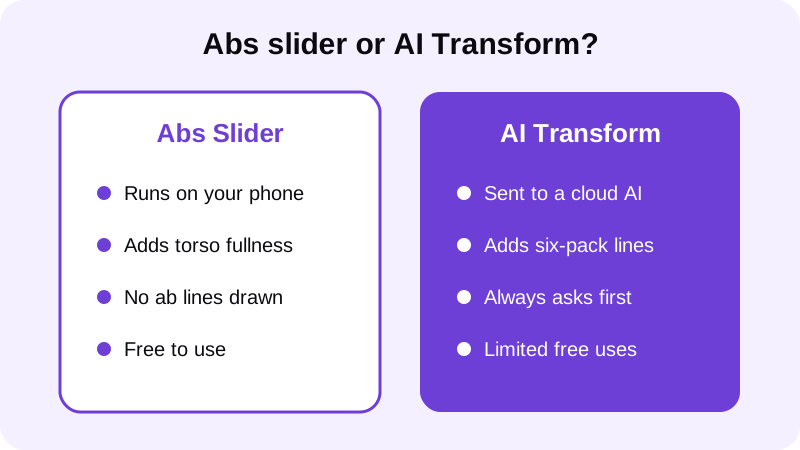
People searching for a Chisel abs editor app are often really asking how does Chisel add abs that look like actual definition, not just a slightly fuller stomach. The honest answer is that the Abs slider alone was never built for that job. It's a torso-shaping tool, the same way the Shoulders and Waist sliders shape the frame around it, not a line-drawing tool.
If what you're after is visible definition — the lines themselves, with shadow and separation — the Abs slider isn't the right tool for that on its own. Our full walkthrough on adding a six-pack to a photo covers the step-by-step for using AI Transform well, including how to pick a photo that already has the lighting and pose to support the result.
How do you add six-pack definition with Chisel?
Six-pack and muscle definition come only from the optional AI Transform, Chisel's cloud-based tool. It asks first, sends just the one photo you choose to a third-party AI provider, and aims to keep your face, pose and background unchanged while adding definition to the torso.
- Pick a photo where your torso is visible — shirtless or a fitted top both work.
- Let Chisel's pose detection find your torso automatically; there's no manual masking to do.
- Tap AI Transform and confirm the prompt, since this step sends your photo to the cloud provider.
- Compare the result against the original before you save or share it.
Every editing tool in Chisel, including the Abs slider, is free to use. AI Transform includes a limited number of free uses rather than unlimited runs, which is worth keeping in mind before you run the same photo through it several times with small tweaks. Chisel Pro removes ads and the watermark and unlocks Pro templates, and it includes a free trial if you want to try it before committing. A one-time Lifetime purchase is also available as an alternative to the subscription, for anyone who'd rather not pay on a recurring basis.
Chisel is available on Android through Google Play, with an iPhone version coming soon, and it doesn't require an account to use — you can open the app and start editing a photo right away. It's built specifically for men's gym and physique photos, not as a general beauty filter, so the sliders and AI Transform are tuned for torso shaping rather than face or skin work.
How much should you move the Abs slider?
Every slider in Chisel — Abs, Muscle, Waist, Shoulders and Height — shows a natural limit marked in green. That marker exists so your torso still reads as your torso, not a cartoon version of it, no matter how far you drag the control.
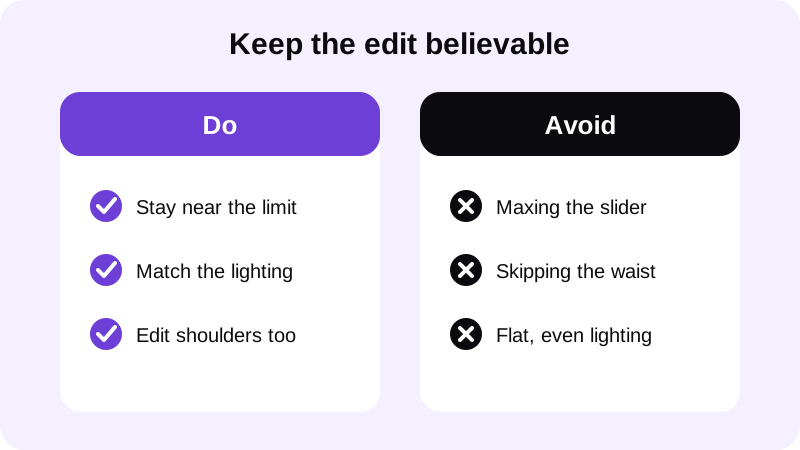
A small, careful move on the Abs slider reads as a photo that simply caught good light at the gym. Pushed all the way to the limit on its own, with nothing else in the frame adjusted to match, it starts to look like exactly what it is — an edit sitting on top of the original photo rather than part of it.
What else makes an abs edit look believable?
Abs by themselves don't make a photo. The V-taper — built from the Shoulders and Waist sliders, which widen the shoulders and slim the waist — does as much for the overall look as the midsection does on its own, and it's usually where a viewer's eye lands first.
Widen the shoulders slightly, slim the waist a touch, and keep both moves inside their natural limit alongside whatever you've done with the Abs slider or AI Transform. Our guide on editing gym photos without looking fake covers this balance in more detail, and how to widen shoulders in a photo walks through that slider specifically, including where its own natural limit tends to sit. If your goal leans more toward a leaner overall frame than added muscle, making your body look leaner in photos is a better starting point than the Abs slider on its own. And if you want tips on timing a flex and lighting the midsection well before you even open the editor, how to make muscles pop in a photo is worth a read too.
Is an abs edit disclosed when you share it?
Yes. Chisel writes an AI-altered label into the edited photo's metadata whenever AI Transform is used, so the edit is disclosed even if you never mention it yourself when you post or send the photo. That disclosure travels with the file, separate from whatever caption you add.
The manual sliders — Abs, Muscle, Waist, Shoulders and Height — run on your phone. Only AI Transform sends the single photo you choose to a third-party cloud AI provider, and it always asks before doing so. For more on how that cloud step works end to end, read what Chisel AI is and how it works. Chisel is made for adults, requires no account to open, and exports an edited photo in HD once you're done — photos larger than a set size on the long side are scaled down when you import them, so very large files get resized automatically before editing starts.
Where else can you learn to edit a gym photo naturally?
- How to add a six-pack to a photo (without looking fake)
- How to add muscle to a photo that looks real
- How to make muscles pop in a photo
FAQ
Does the Chisel Abs slider draw a six-pack?
No. The Abs slider applies the same gentle fullness to the middle of the torso as the Muscle slider. Neither one draws ab lines or muscle definition — for visible six-pack lines, you need the optional AI Transform instead.
Is AI Transform free to use?
Every editing tool in Chisel, including the Abs slider, is free. AI Transform is optional and cloud-based, and it includes a limited number of free uses rather than unlimited runs, so it's worth choosing your photo carefully before tapping it.
Does Chisel send my photo anywhere?
The manual sliders run on your phone. Only AI Transform sends the single photo you choose to a third-party cloud AI provider, and it always asks first before doing so.
How do I know if an abs edit will look fake?
Watch the green natural-limit marker on each slider. Staying near that line, matching the photo's existing lighting, and editing the waist and shoulders alongside the abs are what keep a result looking like a real photo.
Can people tell a photo was edited with AI Transform?
Chisel writes an AI-altered label into the edited photo's metadata whenever AI Transform is used, so the edit is disclosed even if you don't mention it when you share the photo.